
- Kataloge
- ATESTEO GmbH & Co. KG
- Handbuch VECTO (EN)

Handbuch VECTO (EN)

Handbuch VECTO (EN)
Die Installation von VECTO beginnt mit der Ausführung der Datei „VECTO_SETUP_XXXX.exe“. Es gibt drei Installationsarten: Voll (empfohlen), Kompakt und Benutzerdefiniert. Nach Auswahl des Installationspfads und -typs folgen Sie den Anweisungen und starten die Installation. Nach Abschluss kann VECTO durch Ausführen von „VECTO.exe“ gestartet werden. Bei Problemen sollte VECTO mit administrativen Rechten ausgeführt werden.
In diesem Fenster können verbundene Geräte angezeigt und geöffnet werden. Ein Doppelklick auf den entsprechenden Listeneintrag öffnet das Gerät. Wichtige Informationen umfassen die Seriennummer, die VETAS-Typbeschreibung und den Zustand des seriellen Ports.
Links werden allgemeine Informationen zum verbundenen VETAS angezeigt, rechts können verschiedene Funktionen ausgewählt werden. Im Messreiter können Funktionen wie „Messen“ und „Nullen“ aktiviert werden. Im Kalibrierungsreiter kann das analoge Testsignal angepasst werden.
Links werden verschiedene Messgrößen angezeigt, die vom verbundenen VETAS abhängen. Der Diagrammplotter zeichnet die ausgewählten Messwerte auf.
Links wird die Beschreibung der Einstellung und der aktuelle Wert angezeigt. Einstellungen können durch Doppelklick oder durch Eingabe eines gültigen Wertes geändert werden. Nach der Änderung muss „Anwenden“ geklickt werden, um die Änderungen zu speichern. Es besteht die Möglichkeit, eine gespeicherte Konfigurationsdatei zu laden oder die aktuelle Konfiguration zu speichern.
Hier kann die Versorgungsspannung in groben oder feinen Schritten angepasst werden. Die optimale Frequenz beträgt für VETASIII 60 kHz und für VETASIV 4 kHz. Die Funktion „Auto detect“ bestimmt die optimale Spannung.
Im Terminal-Bildschirm kann das Gerät über die Tastatur konfiguriert werden. Änderungen sollten nur vorgenommen werden, wenn die Auswirkungen bekannt sind, da falsche Werte die Funktion des Geräts beeinträchtigen können. Bei Fragen steht der Service zur Verfügung.
Katalogauszüge

VECTO VECTO is a tool that allows you to open multiple VETAS at the same time to configure and read it. It makes it easier to handle the device and provides greater clarity than the usual terminal. AATESTEO Excellence in drivetrain testing
Katalog auf Seite 1 öffnen
VECTO installation
Katalog auf Seite 4 öffnen
VECTO installation To start the installation execute the „VECTO_SETUP_XXXX.exe
Katalog auf Seite 5 öffnen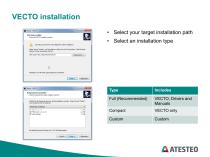
• Select your target installation path• Select an installation type Type Full (Recommended) VECTO, Drivers and Manuals VECTO only Custom
Katalog auf Seite 6 öffnen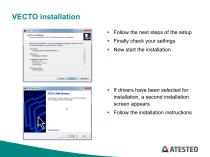
■ Follow the next steps of the setup ■ Finally check your settings ■ If drivers have been selected for installation, a second installation screen appears ■ Follow the installation instructions
Katalog auf Seite 7 öffnen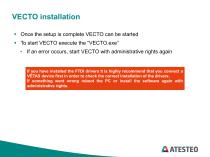
■ Once the setup is complete VECTO can be started ■ To start VECTO execute the “VECTO.exe” • If an error occurs, start VECTO with administrative rights again If you have installed the FTDI drivers it is highly recommend that you connect a VETAS device first in order to check the correct installation of the drivers. If something went wrong reboot the PC or install the software again with administrative rights.
Katalog auf Seite 8 öffnen
Device selection
Katalog auf Seite 9 öffnen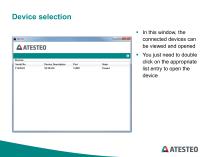
Device selection In this window, the connected devices can be viewed and opened You just need to double click on the appropriate list entry to open the devic
Katalog auf Seite 10 öffnen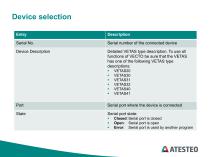
Serial port where the device is connected Device Description Detailed VETAS type description. To use all functions of VECtO be sure that the VETAS has one of the following VETAS type descriptions: Serial port state: ■ Closed: Serial port is closed ■ Open: Serial port is open ■ Error: Serial port is used by another program
Katalog auf Seite 11 öffnen
Control screen
Katalog auf Seite 12 öffnen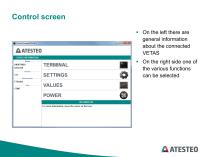
On the left there are general Information about the connected VETAS On the right side one of the various functions can be selected
Katalog auf Seite 13 öffnen
Values screen
Katalog auf Seite 14 öffnen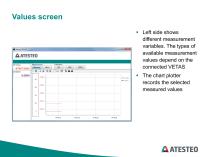
Left side shows different measurement variables. The types of available measurement values depend on the connected VETAS The chart plotter records the selected measured values
Katalog auf Seite 15 öffnen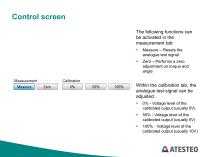
The following functions can be activated in the measurement tab: ■ Measure - Resets the analogue test signal ■ Zero - Performs a zero adjustment on torque and angle Within the calibration tab, the analogue test signal can be adjusted: ■ 0% - Voltage level of the calibrated output (usually 0V) ■ 50% - Voltage level of the calibrated output (usually 5V) ■ 100% - Voltage level of the calibrated output (usually 10V)
Katalog auf Seite 16 öffnen
VETAS settings
Katalog auf Seite 17 öffnen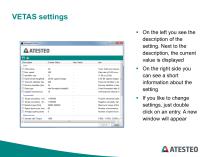
■ On the left you see the description of the setting. Next to the description, the current value is displayed ■ On the right side you can see a short information about the setting ■ If you like to change settings, just double click on an entry. A new window will appear
Katalog auf Seite 18 öffnen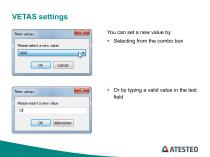
You can set a new value by ■ Selecting from the combo box Or by typing a valid value in the text field
Katalog auf Seite 19 öffnen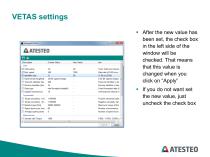
■ After the new value has been set, the check box in the left side of the window will be checked. That means that this value is changed when you click on “Apply” ■ If you do not want set the new value, just uncheck the check box
Katalog auf Seite 20 öffnen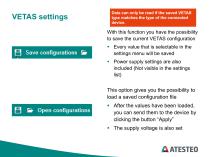
Data can only be read if the saved VETAS type matches the type of the connected device. With this function you have the possibility to save the current VETAS configuration ■ Every value that is selectable in the settings menu will be saved ■ Power supply settings are also included (Not visible in the settings list) This option gives you the possibility to load a saved configuration file ■ After the values have been loaded, you can send them to the device by clicking the button “Apply” ■ The supply voltage is also set
Katalog auf Seite 21 öffnen
Power settings
Katalog auf Seite 22 öffnen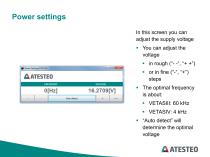
In this screen you can adjust the supply voltage ■ The optimal frequency is about: ■ “Auto detect” will determine the optimal voltage
Katalog auf Seite 23 öffnen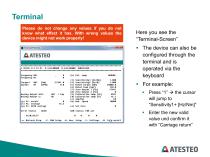
Terminal Please do not change any values if you do not know what effect it has. With wrong values the device might not work properly! Here you see the “Terminal-Screen” The device can also be configured through the terminal and is operated via the keyboard For example: Press “1” the cursor will jump to “Sensitivity1+ [Hz/Nm]” Enter the new valid value und confirm it wit
Katalog auf Seite 25 öffnen
Alle Kataloge und technischen Broschüren von ATESTEO GmbH & Co. KG
 Flyer DF-Familie
4 Seiten
 Datenblatt F4 RTS
7 Seiten
 Datenblatt DF4 ibex
21 Seiten
 Datenblatt DF5 ibex
21 Seiten
 Datenblatt F4xS
21 Seiten
 Datenblatt DF5 dual
23 Seiten
 Datenblatt DF4 dual
23 Seiten
 Datenblatt DF3 dual
23 Seiten
 Datenblatt DF2 dual
23 Seiten
 Datenblatt DF1 dual
23 Seiten
 Handbuch CapSync HVT
68 Seiten
 Datenblatt CapSync HVT
7 Seiten
 Handbuch IRTS-Serie
124 Seiten
 Datenblatt IRTS-P
11 Seiten
 Handbuch VETAS 3 (EN)
30 Seiten
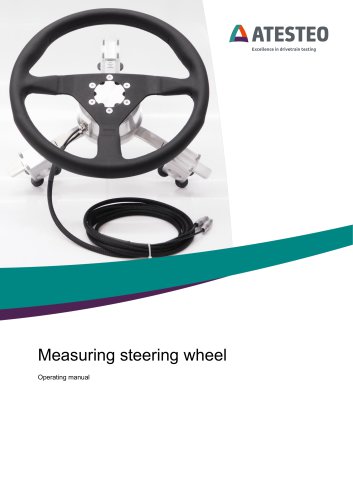 Handbuch Messlenkrad (EN)
17 Seiten
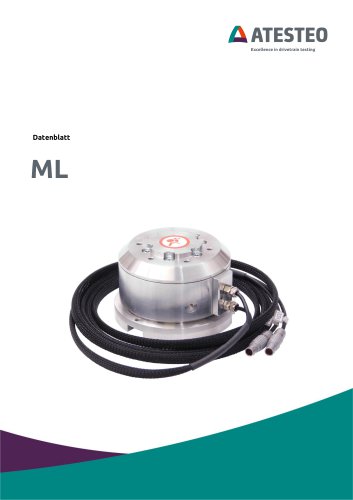 Datenblatt Messlenkrad
9 Seiten
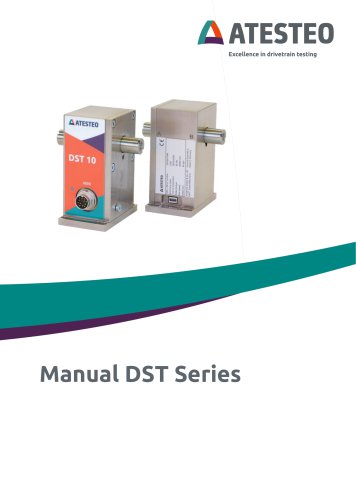 Handbuch DST-Serie (EN)
69 Seiten
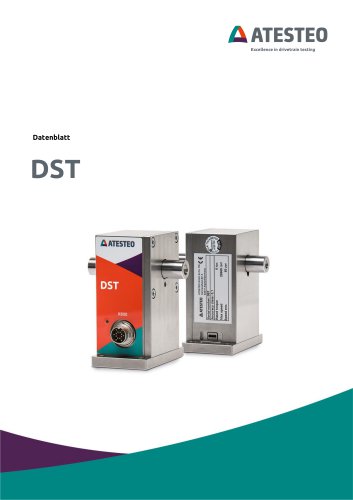 Datenblatt DST-Serie
13 Seiten
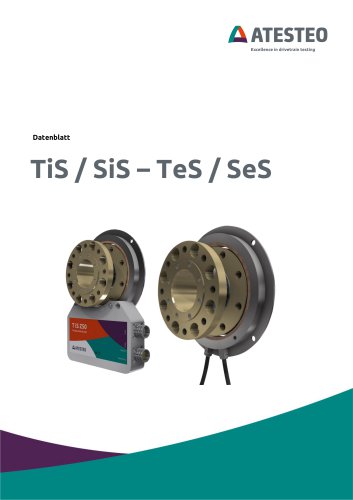 Datenblatt TiS Z50
20 Seiten
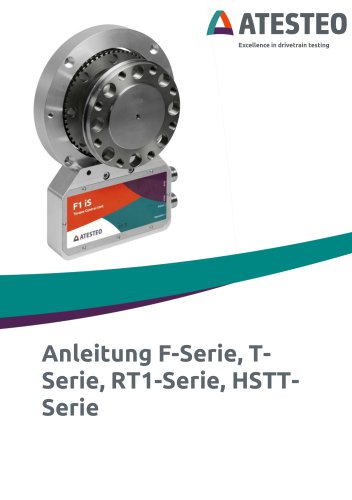 Handbuch T-Serie
132 Seiten
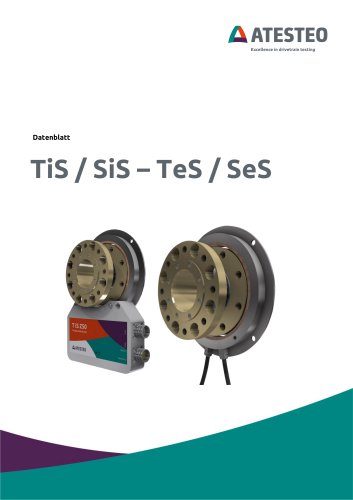 Datenblatt TeS Z50
21 Seiten
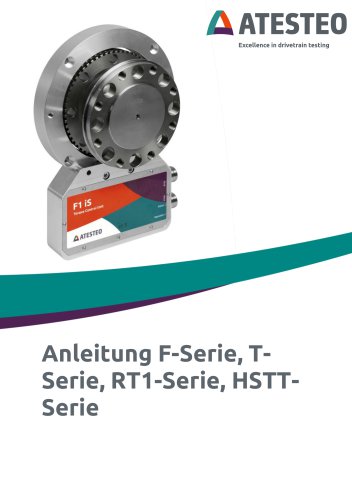 Handbuch RT11-Serie
132 Seiten
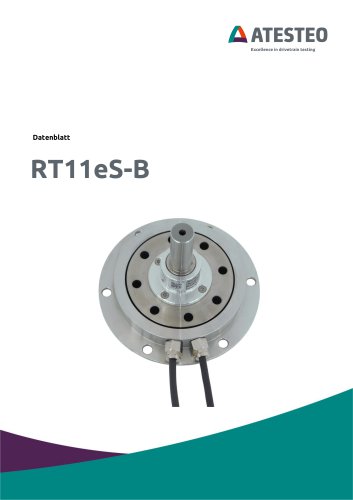 Datenblatt RT11eS-B
20 Seiten
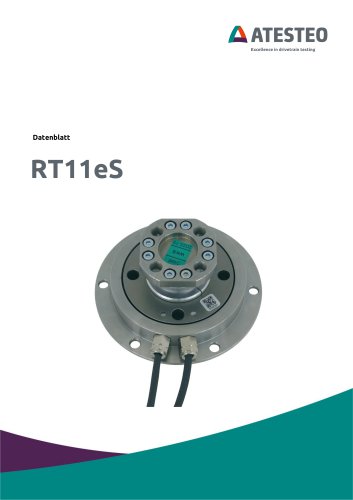 Datenblatt RT11eS
17 Seiten
 Handbuch HSTTeS-Serie
132 Seiten
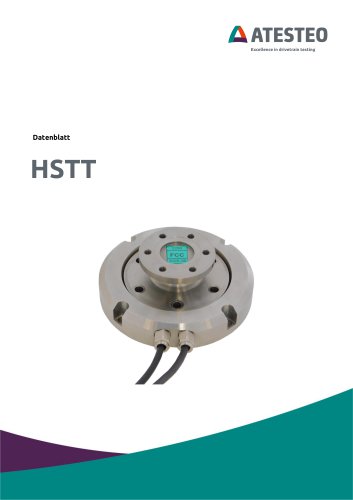 Datenblatt HSTTeS-Serie
20 Seiten
 Datenblatt F23 RTS
7 Seiten
 Datenblatt F3 RTS
7 Seiten
 Datenblatt F5xS
18 Seiten
 Datenblatt F34xS
21 Seiten
 Datenblatt F3xS
27 Seiten
 Datenblatt F23xS
21 Seiten
 Handbuch Fx-Serie
132 Seiten
 Datenblatt F2xS
35 Seiten
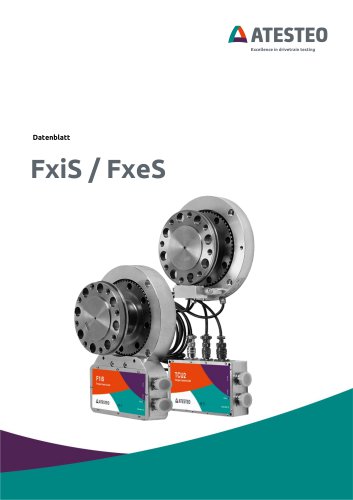 Datenblatt F1xS
27 Seiten
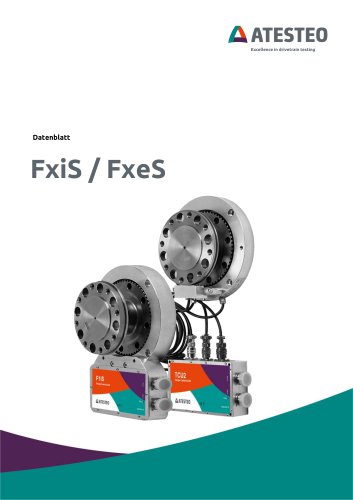 Datenblatt F0xS
51 Seiten
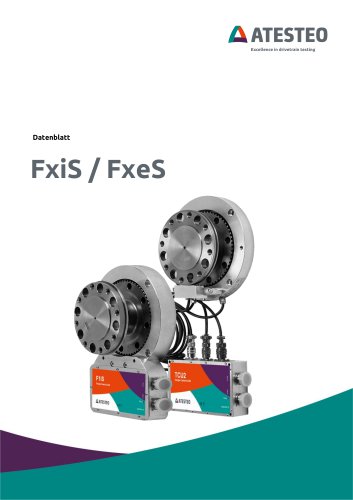 Datenblatt F0xS-SV
27 Seiten
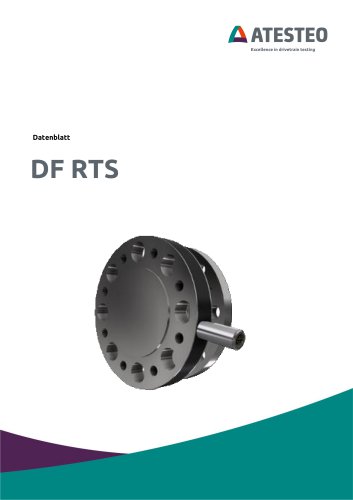 Datenblatt DF RTS
11 Seiten
 Datenblatt DF plus HS
20 Seiten
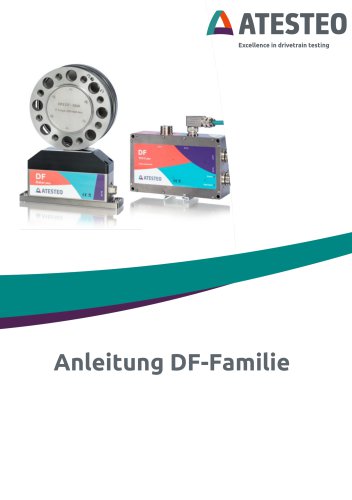 Handbuch DF plus-Serie
132 Seiten
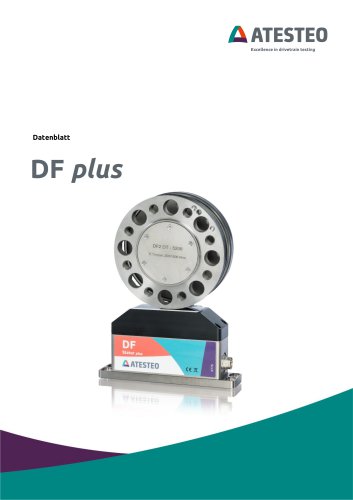 Datenblatt DF plus-Serie
41 Seiten
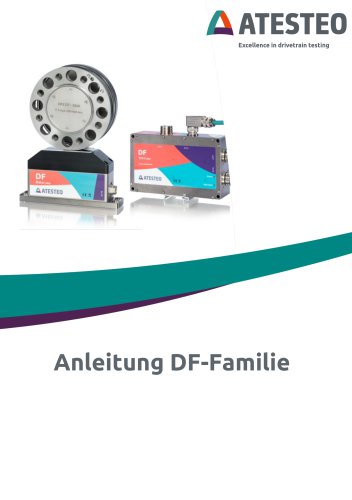 Handbuch DF dual-Serie
132 Seiten
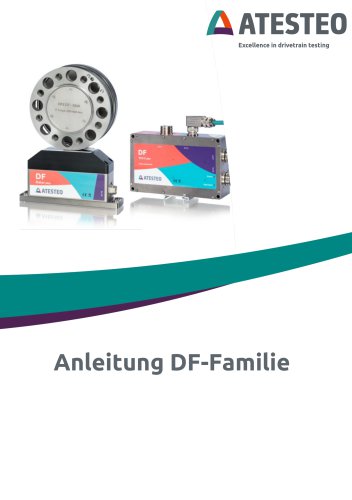 Handbuch DF ibex-Serie
132 Seiten
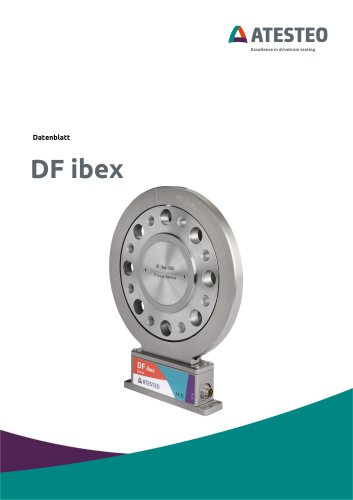 Datenblatt DF3 ibex
21 Seiten
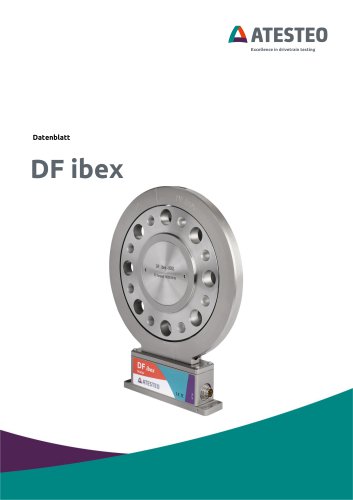 Datenblatt DF2 ibex
21 Seiten
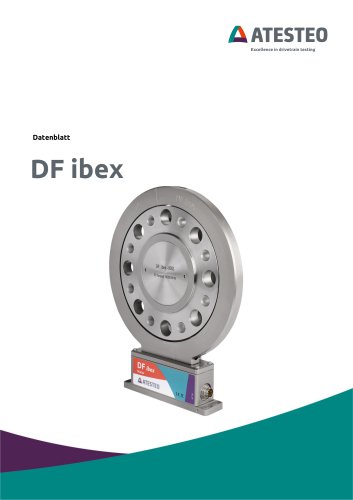 Datenblatt DF1 ibex
21 Seiten

- ATESTEO Drehmomentsensor
- ATESTEO dynamischer Drehmomentsensor
- ATESTEO Rotations-Drehmomentsensor
- ATESTEO analoger Drehmomentsensor
- ATESTEO Dehnungsmessstreifen-Drehmomentsensor
- ATESTEO kontaktloser Drehmomentsensor
- ATESTEO digitaler Drehmomentsensor
- ATESTEO Hochpräzisions-Drehmomentsensor
- ATESTEO DC-Drehmomentsensor
- ATESTEO Drehmomentsensor mit Flanschanschluss
- Kompakter Drehmomentsensor
- Modularer Temperaturkontrolle
- ATESTEO Drehmomentsensor mit Spannungsausgang
- USB-Drehmomentsensor
- Drehmomentsensor / 12 VDC
- Flanschmontage-Drehmomentsensor
- ATESTEO Drehmomentsensor für Prüfstände
- ATESTEO Drehmomentsensor mit integrierter Elektronik
- Drehmomentsensor nach Maß
- Drehmomentsensor mit Drehgeber